

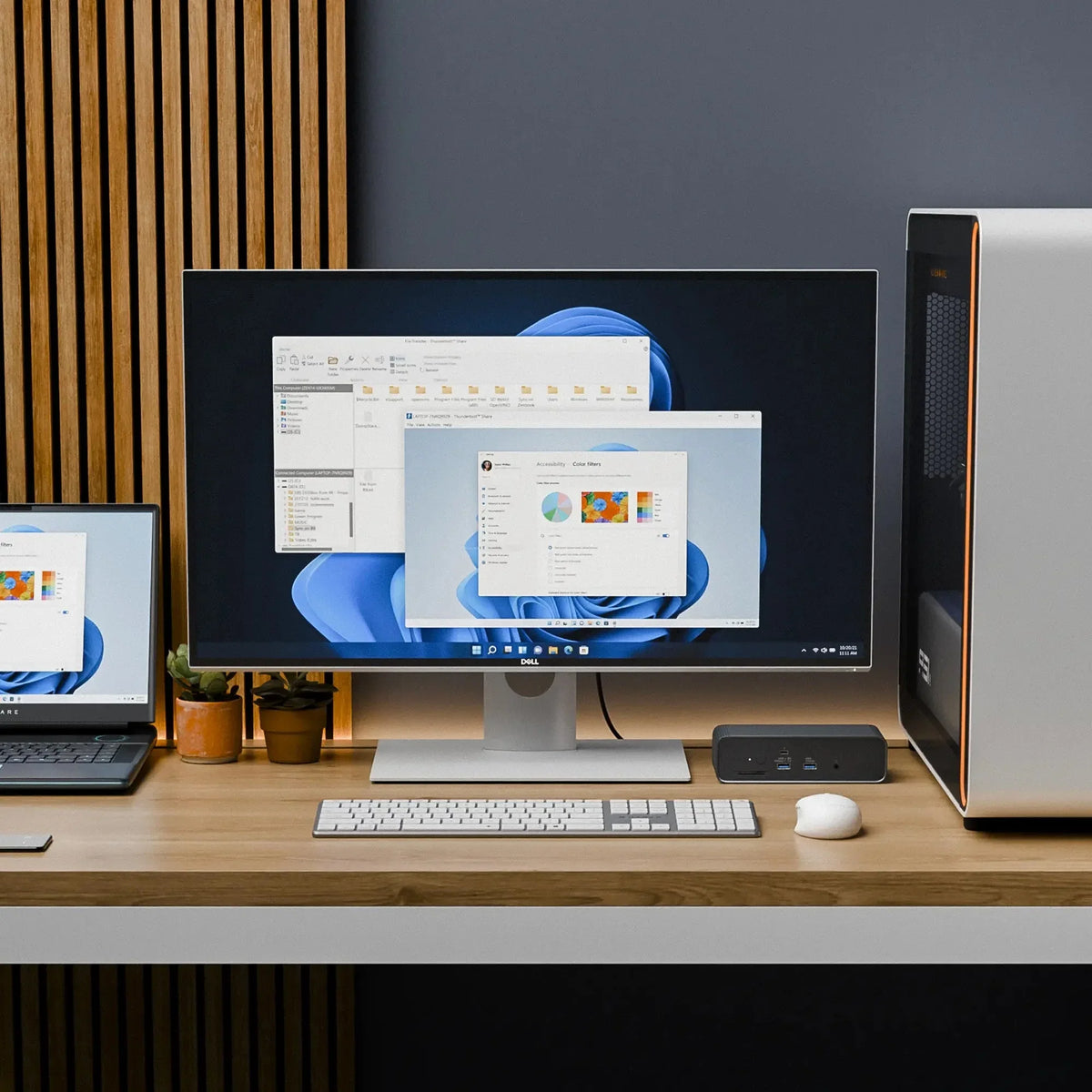
The HyperDrive Next Thunderbolt™ 5 Dock is Thunderbolt Share-licensed. Plug two Windows PCs into the same dock and they can share files, screens, and a single keyboard and mouse over one Thunderbolt connection. No cloud, no Wi-Fi, no extra hardware.

If you have not used Thunderbolt™ Share before, here is a quick guide to what it is, how it stacks up against a KVM switch, and which workflows it suits best.
What Thunderbolt™ Share Is
Thunderbolt Share is an Intel software feature that runs over Thunderbolt™ Networking. Two Windows 11 PCs connect through a Thunderbolt™ 4 or Thunderbolt 5™ cable, or through a Thunderbolt™ Share-licensed dock between them, and install the Thunderbolt Share app.
From there, you get four main capabilities:
- File transfer: drag and drop files between machines through Windows Explorer, the same way you would use an external drive.
- Folder sync: keep folders mirrored between both PCs, similar to Dropbox but local.
- Screen sharing with control: view one PC on the other and use a single keyboard and mouse across both, with synced audio.
- PC migration: a guided flow for moving files from an old machine to a new one.
Performance depends on the Thunderbolt Network link. Thunderbolt 4 supports up to 20Gbps PC-to-PC. Thunderbolt 5 doubles that to 40Gbps. Screen sharing supports up to 60fps at 4k resolution.
Licensing matters. At least one device in the chain must be Thunderbolt Share-licensed by its manufacturer. That can be a PC, or it can be a dock. The HyperDrive Next Thunderbolt™ 5 Dock is licensed, so two PCs can use Thunderbolt™ Share through it without needing the feature built into either laptop or desktop.
One note on platform support. Thunderbolt Share is Windows 11 only.
How Thunderbolt™ Share Compares to a KVM Switch
People often hear “share a keyboard, mouse, and monitor between two PCs” and think KVM. The two solve overlapping problems in different ways.
A KVM switch is a hardware box. Both PCs plug into it. The KVM routes video, USB, and audio signals to whichever PC you select. You hit a button, and the monitor, keyboard, and mouse switch over. Each PC stays fully isolated.
Thunderbolt Share is software that runs over a Thunderbolt link between the two PCs. The computers stay aware of each other the whole time. You do not switch between them so much as work across both at once.
The differences matter:
Hardware vs. software. A dedicated hardware KVM typically costs $200 to $600 as a separate purchase. Thunderbolt Share is bundled into a licensed PC or accessory you would buy anyway, like a dock.
Isolation vs. integration. A KVM keeps the two PCs separate, which is what some IT environments need (a personal machine and a work machine that should never see each other). Thunderbolt Share is the opposite: the point is that the two systems can move files and inputs back and forth perfect for power user with dual host computers.
Switching vs. simultaneous use. A KVM shows one PC at a time on the monitor. Thunderbolt Share keeps both PCs alive at once. You can drag a file from one to the other, or watch a render finish on one screen while editing on another.
Video quality. A KVM passes the full native video signal, so 4K at 144Hz or 8K at 60Hz comes through clean. Thunderbolt share supports native (ANY) video resolution from the remote PC, so 1080p, 2K, 3K, 4K, 6K, 8K with fps up to 60fps @4K and >60fps @2k on high end GPU and high refresh rate monitors.
OS support. Most Thunderbolt KVMs work cross-platform. Thunderbolt Share is Windows only.
Short version: A traditional KVM enables the host computers to connect its video, keyboard, mouse to the KVM via physical cables. Thunderbolt Share is the better fit if you want the two PCs to actually work together, with fast file movement and a single set of inputs.
Workflows Where Thunderbolt Share Fits
Video and photo editing across two machines. A common creative setup pairs a powerful desktop for renders and color with a laptop for travel, ingest, or client review. Thunderbolt Share moves raw footage or a Lightroom catalog from the laptop to the desktop in minutes instead of hours, without burning bandwidth on Wi-Fi or paying for cloud egress.
AI and ML development. Models and training datasets are large. Tweaking a model on a workstation and pushing it to a test machine over Wi-Fi is slow and exposes data to the network. Over Thunderbolt 5, model weights move at up to 40Gbps between two machines that never touch the cloud.
Streaming and game capture. The classic two-PC streaming setup uses one machine for the game and another for OBS, encoding, and chat. Thunderbolt Share replaces the capture card and Ethernet crossover. One cable handles video preview, file transfer, and shared input.
Work plus personal at the same desk. A company laptop and a personal Windows PC side by side. Same monitor through the dock, one keyboard, one mouse, and a way to move a file between them when needed.
Migrating to a new PC. The migration flow is one of the better day-one uses. New laptop, old laptop, one cable. Files and settings copy directly at Thunderbolt speed instead of through a USB drive or a cloud sync (Max of 40Gbps data transfer speed on Thunderbolt 5 host vs 5Gbps or 10Gbps via USB drive).
Developers running parallel environments. A local server on one machine and the editor on the other, no IP weirdness or VPN setup. The two PCs work effectively as one workstation with double the cores and RAM.
What the HyperDrive Next Thunderbolt 5 Dock Brings to the Setup
Beyond Thunderbolt Share, the HyperDrive Next Thunderbolt 5 Dock delivers 120Gbps Thunderbolt 5 bandwidth, triple 4K display support at 60Hz, 140W EPR charging, and a built-in M.2 PCIe Gen 4 slot for storage or an AI accelerator card.

One cable from each PC to the dock. Everything else stays connected.
Is Thunderbolt Share Right for You?
Three questions to ask:
- Are both machines Windows 11 with Thunderbolt™ 4 or Thunderbolt 5™?
- Do the two PCs need to work together, or just share a monitor?
- Do you move large files, share peripherals, or run workflows that span both machines?
If the answer to all three is yes, Thunderbolt Share is a strong fit. If you need cross-platform support or full native display quality on a shared monitor, a Thunderbolt KVM is the better tool.

For everyone in the first camp, a licensed dock is the most practical way in. The HyperDrive Next Thunderbolt 5 Dock is built for exactly that.


The Best USB4 SSD Enclosures for Students: Work Directly from Your SSD
Hyper Adds Essential Protection and Privacy Accessories to its Growing MacBook Neo Collection
Share: