

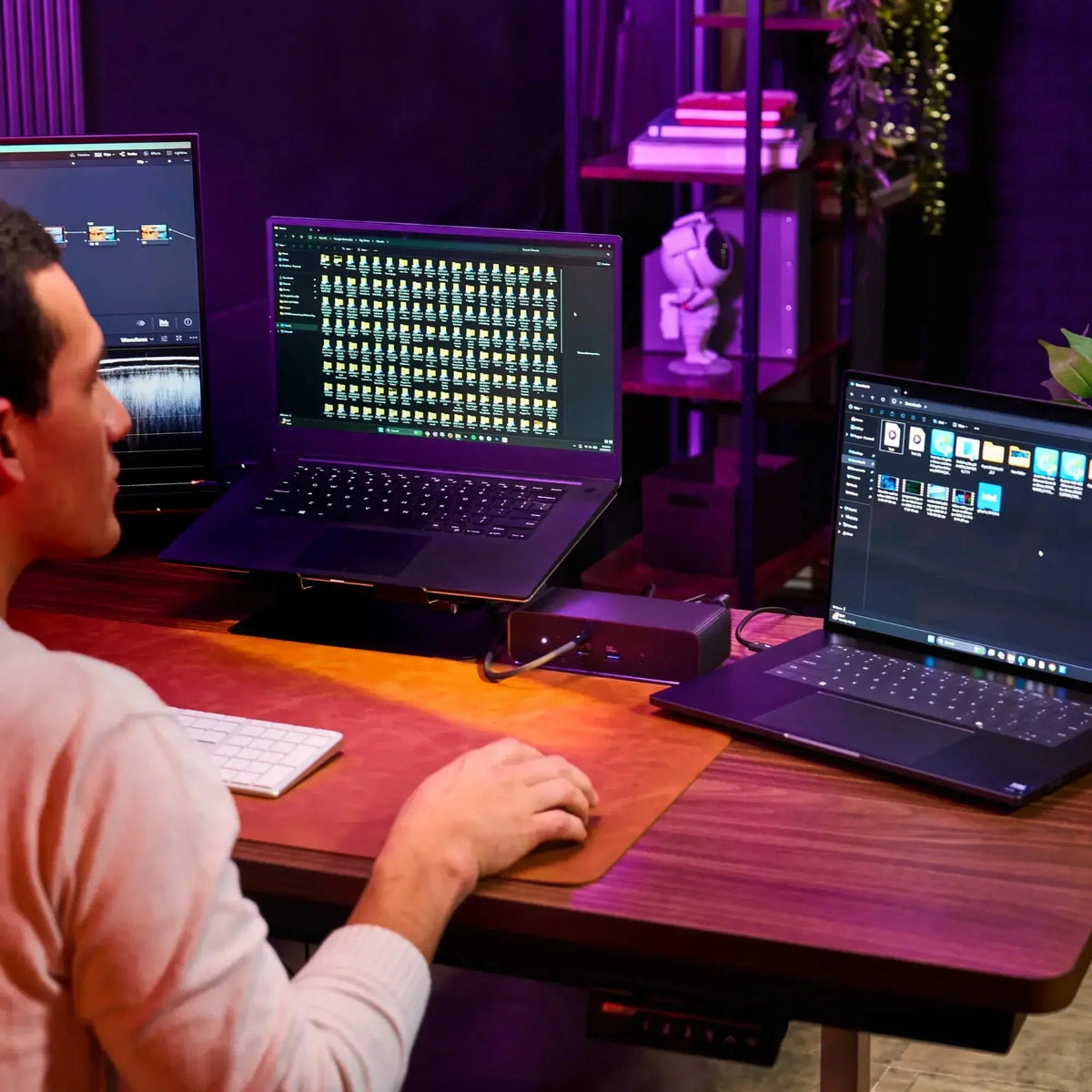
If you just picked up a MacBook M4 Pro, M5 Pro, or a Thunderbolt 5 Windows laptop, you are probably looking at your desk setup and wondering what comes next. One dock. One cable. Everything connected. That is the short version of what Thunderbolt 5 makes possible, and the HyperDrive Next Thunderbolt 5 Dock is built to deliver it.
This post covers what Thunderbolt 5 actually is, what the dock does, how it compares to Thunderbolt 4, and who it is for. No fluff, just what you need to decide.
What is Thunderbolt 5?
Thunderbolt 5 is the latest wired connectivity standard from Intel. It doubles the baseline bandwidth of Thunderbolt 4, going from 40Gbps to 80Gbps bidirectional. For display-heavy tasks, it pushes further with Bandwidth Boost, which dynamically allocates up to 120Gbps toward video output, keeping data transfers and displays running at the same time without fighting over the same lane.

It uses the same USB-C connector as Thunderbolt 4 and USB4, so existing cables and ports are compatible. The upgrade is in what happens underneath.
What the HyperDrive Next Thunderbolt 5 Dock does
The HyperDrive Next Thunderbolt 5 Dock connects to your laptop through a single Thunderbolt 5 cable and expands it into a full desktop setup. Here is what that includes:
- Up to 120Gbps of Bandwidth Boost for video output
- Triple 4K at up to 144Hz on Windows. MacBook Pro M5 Pro and M5 Max support triple displays at up to 60Hz. The 14-inch MacBook Pro with base M5 chip has Thunderbolt 4, not Thunderbolt 5, and supports two external displays. All other Mac configurations support dual displays.
- Single 8K display at up to 144Hz on Windows
- 140W EPR PD 3.1 laptop charging, no separate power brick needed
- 2.5Gbps Ethernet for fast wired networking
- Full-size M.2 PCIe Gen 4 and Gen 3 slot for NVMe storage or compatible AI accelerator modules
- Thunderbolt Share to connect two PCs to one dock, sharing files and peripherals without a network
- 10Gbps USB transfer speeds across downstream ports
- 75% recycled plastic and aluminum construction

Ten ports total. One cable in. The dock handles power, data, displays, and storage at the same time. Users can compare Thunderbolt docks to find the right balance of display support, data bandwidth, charging, and expansion for their setup.
Thunderbolt 5 vs Thunderbolt 4: is the upgrade worth it?
For most casual users, Thunderbolt 4 is still plenty. If you browse, video call, and work in a few browser tabs, you will not hit the ceiling. For lighter or more portable setups, USB-C hubs and travel docks may be a better fit when you do not need Thunderbolt 5 bandwidth, triple-display output or full desktop expansion.
Where Thunderbolt 5 makes a real difference:
- You are running multiple high-resolution displays and notice lag or dropped frames
- You are editing 4K or 8K footage and need external storage that does not bottleneck your timeline
- You want to run a fast NVMe drive through the dock and still have full display bandwidth
- You are planning to keep your dock for the next MacBook or Windows upgrade
The M.2 PCIe Gen 4 slot is part of this calculus too. Thunderbolt 4 docks with M.2 slots exist, but the bandwidth to use them fully is limited. With TB5, the lane is wide enough that a fast NVMe drive and two 4K displays can run at the same time without either taking a hit.
Thunderbolt Share: two computers, one dock
Thunderbolt Share lets you connect two PCs to the dock and share files, a keyboard, a mouse, and peripherals between them, without a network cable or Wi-Fi.

Practical uses: a work Mac and a personal Windows machine at the same desk. A primary laptop and a secondary review machine for creative teams. A laptop and a Mac mini sharing a single display and keyboard setup. You switch between them without touching a cable. Also for USB-C dock for creator workflows
The M.2 slot: storage today, AI tomorrow
The HyperDrive Next Thunderbolt 5 Dock includes a full-size M.2 PCIe Gen 4 and Gen 3 slot. Most people will use this for a fast NVMe SSD, which turns the dock into both a connectivity hub and a high-speed storage enclosure.

The slot also supports compatible PCIe-based M.2 modules, including AI accelerator cards. That means the dock can house an inference card like the Hailo-8, letting a laptop run local AI workloads through the dock without needing a desktop GPU.
Who this dock is for
Mac users on M4 Pro or M5 Pro/Max
MacBook Pro models with M4 Pro, M4 Max, M5 Pro, and M5 Max include Thunderbolt 5 ports. The 14-inch MacBook Pro with base M5 chip uses Thunderbolt 4. The HyperDrive Next Thunderbolt 5 Dock is built to use the full bandwidth TB5 ports offer. Display support on macOS depends on your chip.
Windows Thunderbolt 5 users
Thunderbolt 5 is showing up on high-performance Windows laptops released in 2024 and later. To confirm your port, check your laptop's spec sheet or look for a lightning bolt icon with a "5" next to the port. If it's TB5, you're getting the full dock experience: triple 4K displays and top-end bandwidth.
Hybrid workers and creative teams
Thunderbolt Share is built for people who work across two machines. If you run a Mac for creative work and a Windows machine for business software, or if you and a colleague share a dock, the HyperDrive Next TB5 Dock handles that workflow without extra hardware.
If you’re ready to upgrade your setup with faster speeds, expanded ports, and future-ready performance, the HyperDrive Next Thunderbolt 5 Dock delivers everything covered above in one powerful dock.


Earth Month: Hyper's 2026 Sustainability Overview
The Best Dock for MacBook Pro M5: Triple 4K Displays, One Cable, No Compression
Share: